
Chitramtv Setup guide
Download Your ChitramTV Setup Files
Setting up Chitram TV is quick and works across every major device. To download the official ChitramTV app, visit our secure setup site at ctvstore.net and choose the version that matches your device.
How to download:
- Go to ctvstore.net on your phone, computer, or streaming device.
- Select your device from the options provided – Box, Fire TV Stick, Android Phone, Windows, or Mac.
- Download the file and follow the on-screen install steps for your device.
- Once installed, open the ChitramTV app and enter the PIN from your ChitramTV subscription or renewal to activate.
Your ChitramTV subscription works the same way across every device – once you’re set up, you’re ready to stream Tamil, Hindi, Malayalam, and more, anywhere in Europe.
Need help? If you run into any issues during setup, our 24/7 support team is ready to help – just reach out with your device type and we’ll walk you through it.
Instructions to install https://www.ctvstore.net/
CTV Box with Your Flash or USB Drive
1) On your laptop or desktop, open the browser and type ctvstore.net/ctv3316.apk. One file will be downloaded.
2) Copy that file on your pen drive/USB drive
3) Insert pen drive on your chitramtv box
4) On the Chitram box home page, click “File Explorer” – then select that file you have copied on pen drive, install that app. Click Done.
5) Now, click back and come to the home page screen, Click the ‘+’ symbol on the screen, then it will show many apps. You will see 2 CTV app logo. select the CTV app logo with ‘TM’ letter . Then the Tick symbol will come. Then Click back.
6) You will see that new CTV app next to the “+” symbol on the screen. Going forward you have to use this app to watch.
7) When you open this new app , it will popup message Manage phone calls to allow or Deny. You have to click “Allow” on this message.
8) Enter your subscription ID and password
9) Once logged inside chitramtv app, Go to settings- change streaming standard as UDT.
10) Then start watching with your new version of CTV app logo with ‘TM’ letter.
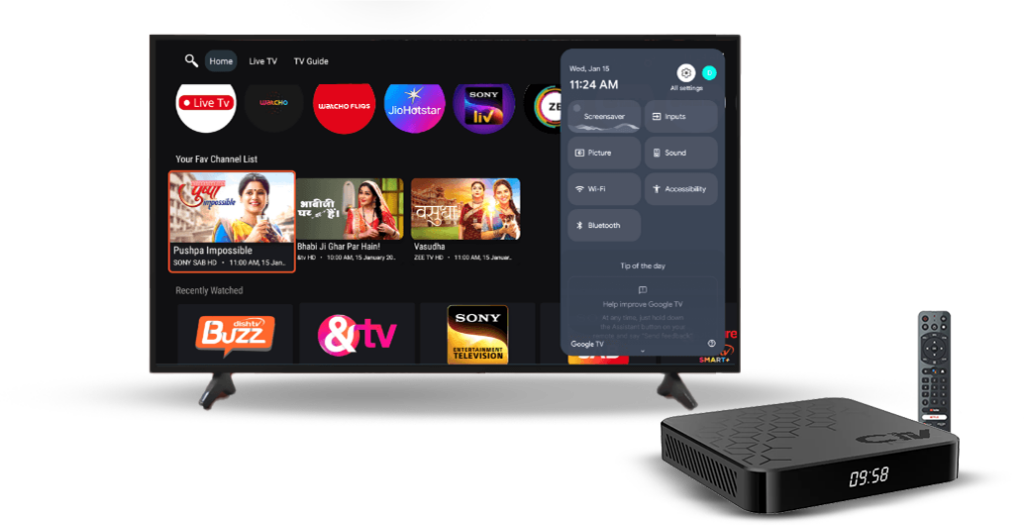
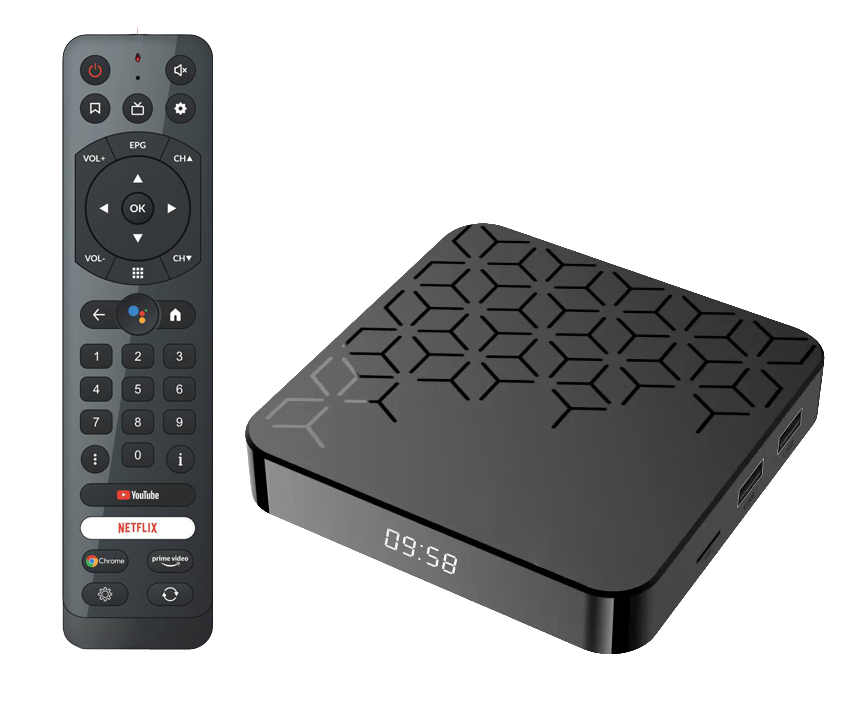
4K Mini & Others
Please follow the instructions
1) Open the browser in your box and enter ctvstore.net
2) Click Download for Box, and continue installing as per this video : https://youtu.be/K0R2ArsRg00?si=mkZdQr0KWqygTJ7i
3) When you open this new app , it will popup message Manage phone calls to allow or Deny. You have to click “Allow” on this message.
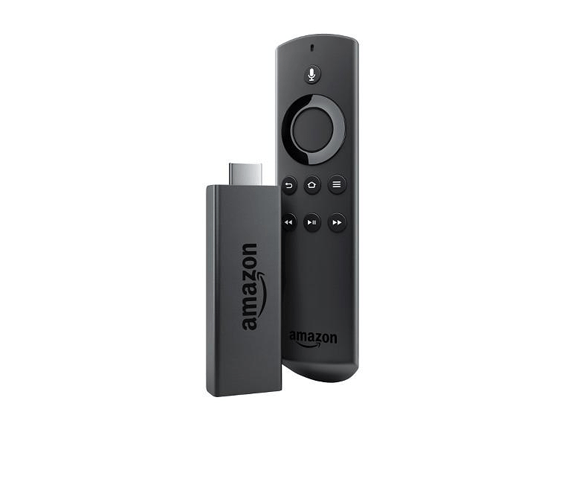
How to install in Fire tv stick (Test Version)
- Enable “Apps from Unknown Sources” in Amazon Fire Stick (Go to settings->My Fire Tv-> Developer Options-> Apps from Unknown Sources- Select “ON”)
Incase Developer Options not showing on the above step, go to settings- About – select fire TV name – On this screen, press “ok “button 7 times on top of the fire tv stick name, then click back and you will see developer options – Enable unknown sources. - Install the Downloader app from Fire TV store. (Go to search – Type “Downloader”)
- Once installed, open the Downloader App.
- On the Downloader app, in the URL Field type the below URL and Click Go
https://ctvstore.net/ctv3316firetv.apk - Once Downloaded, please proceed with installation
- Open CTV app and If it asks for a message to manage phone calls, please click allow, then you will see the Subscription details screen. (Please don’t click denied on this message)
- Enter ID and Password of CTV.
- Once Logged in on CTV app, you will see TV, VOD and Settings. Go to settings – Change “Streaming standard” as UDT (Note: In case when you click Streaming standard and nothing happens, then our CTV app may not be compatible with your fire stick model, you may need to buy new any model firestick which is available in the market, then install this app and watch. With your current firestick also able to watch, but streaming may not be good since you are not able to change “streaming standard” settings.)

- How to Configure in Windows / Mac
- After installation, open Settings by clicking the settings icon in the bottom-right corner.
- Enable the Advanced Settings checkbox.
- Go to the Advanced Settings tab and press Ctrl + Alt + A.
- Set the API Server to 194.26.203.141 and save the changes.
- Restart the application to apply the changes.